
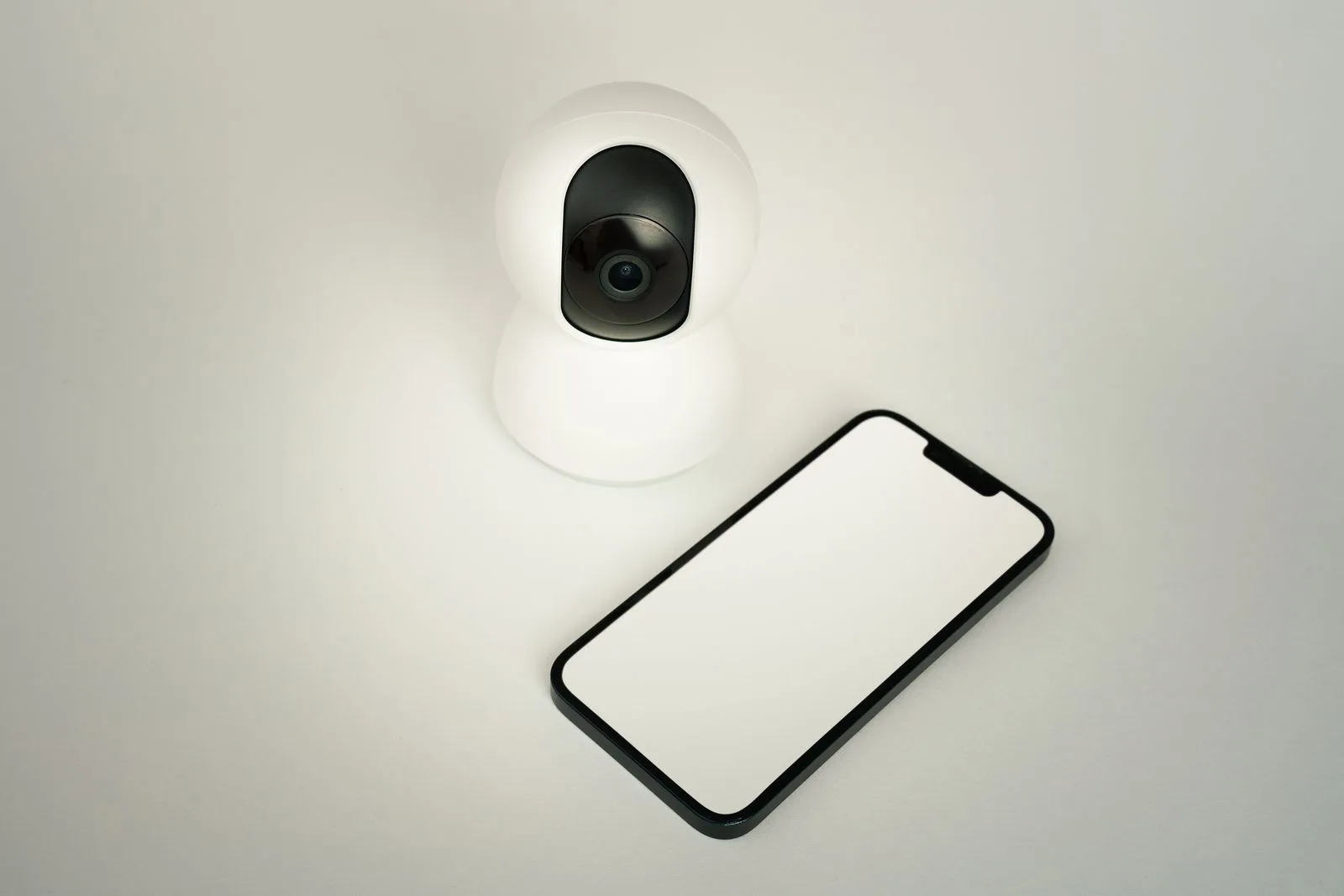
In short: to view a camera remotely, you simply link it to its manufacturer’s app, with an online account. The camera sends its images over the internet, and the smartphone displays them wherever it has a signal, without being on the same Wi-Fi. Security rests on the account: a unique password, two-factor authentication and updates.
The ability to view a security camera remotely on a smartphone lets you watch your home live, get an alert when motion is detected and play back a recording, whether from the office or from a holiday spot. The principle is the same from one manufacturer to the next: a camera connected to the internet, an app, an account. This guide covers how it works, the steps to connect a Wi-Fi camera to a smartphone, video storage and the settings that protect the account.
Connecting a Wi-Fi camera to your smartphone: the steps in one table
The table sums up the typical process. The exact order and menu names vary from app to app, but the steps stay the same.
| Step | What to do | Watch out for |
|---|---|---|
| Power the camera near its final spot | Wi-Fi band supported, shown on the spec sheet |
| Download the official app | Only from the phone’s app store |
| Email address and password | Long password unique to this account |
| Scan the QR code, enter the Wi-Fi | Phone on the home network |
| Open the live feed on mobile data | Phone’s Wi-Fi switched off |
| Two-factor authentication, updates | Share by invitation, never by password |
Typical process for a consumer Wi-Fi camera. Details depend on the manufacturer’s app.
How remote viewing works
The camera connects to the internet through the home router, over Wi-Fi or by cable, or through its own SIM card for a 4G model. It connects to its manufacturer’s online service, to which it is tied through the user’s account. The smartphone, for its part, reaches that same service through the app. The two devices therefore do not need to be on the same network: the phone shows the camera over 4G, 5G or from any Wi-Fi network.
Depending on the model, the video stream goes through the manufacturer’s servers or travels directly between the camera and the phone once the online service has put them in touch (this is called a P2P, or peer-to-peer, connection). For the user, the result is the same: no router settings are needed, with no port forwarding and no fixed IP address.
Two conditions remain essential: an active internet connection on the camera side and on the smartphone side. If the home internet goes down, remote access and notifications stop. Local recording, on a microSD card or recorder, can however continue as long as the camera and the storage device stay powered.
How to connect a Wi-Fi camera to a smartphone, step by step
Prepare the camera and the network
The camera is plugged in, or charged if it is a battery model, then placed within Wi-Fi range. Depending on the model, it supports the 2.4 GHz band only or both bands, 2.4 and 5 GHz: the spec sheet says which. A weak signal at the final spot results in a picture that stutters or drops, hence the value of checking reception before drilling into the wall.
Install the official app and create the account
The app is downloaded from the phone’s app store and nowhere else: Cybermalveillance.gouv.fr recommends downloading apps only from official sites or stores. Creating the account requires an email address and a password. The same service advises using a separate password for the account linked to a connected device, and giving only the minimum of personal information.
Add the camera to the account
In the app, the add device button starts the pairing. Most often, you just scan the QR code printed on the camera or its box, or enter its serial number, then choose the home Wi-Fi network and type in its password. The phone must be connected to that same Wi-Fi during this step.
Turn on notifications and test away from home
Once the camera is added, the app offers to set up motion detection and alerts. Notifications must also be allowed in the smartphone’s settings. The decisive test is done by switching off the phone’s Wi-Fi: if the live feed opens on mobile data, remote viewing works.
What the app lets you do remotely
Once the camera is paired, the app acts as a control panel. The functions available depend on the model, but most are found from one app to the next: The same principle applies at the front door with a video intercom: see how to wire an intercom.
- the live feed, full screen or as a grid when several cameras are linked to the account;
- alerts when motion is detected, with person detection on some models to filter out some false alerts;
- playback of recordings, by date or by event;
- two-way audio, to speak to a delivery driver or a visitor;
- the siren or spotlight, triggered from the phone on models that have them;
- shared access, so that a relative can view the camera from their own smartphone.
To compare these functions from one model to another, the top 10 outdoor security cameras covers the detailed spec sheets.
Video storage: microSD card, recorder or cloud
The live feed needs no storage. Playback does: it is only possible if a storage medium has been set up. Three options exist depending on the model. The Tapo vs Ring face-off illustrates both approaches, local storage on a microSD card and cloud history.
- The microSD card, inserted in the camera: videos stay in the device and can be viewed from the app, with no monthly fee.
- The recorder (NVR), which centralises several cameras on a hard drive at home.
- The manufacturer’s cloud, usually by subscription: videos are copied online and remain viewable even if the camera is stolen or destroyed.
When no video appears in the history, three checks are usually enough: the period chosen in the calendar, the condition of the card or drive, and the account’s permissions when it is shared access.
Wi-Fi, wired or 4G camera: which connection for remote viewing
All connected cameras can be viewed on a smartphone. The difference lies in how they reach the internet, and therefore in the place to be monitored. When Wi-Fi struggles to reach the mounting spot, the guide powerline or Wi-Fi extender compares the two ways to extend the network.
- Over Wi-Fi, the camera joins the home router. It is the simplest option in a house or flat that is already connected.
- Wired, by network cable, possibly powered through that same cable (PoE): the most stable connection, for continuous monitoring.
- Over 4G, with a SIM card: the camera does without a router, which suits a plot of land, a building site or a second home without an internet subscription.
A camera placed outdoors must also withstand the weather: the guide on IP65 meaning explains how to read the protection rating on a spec sheet.
Securing the account and remote access
The online account gives access to footage of the home. Protecting it matters as much as protecting the front door. The recommendations of Cybermalveillance.gouv.fr for connected devices and for digital security in general apply directly to a camera:
- replace default passwords on the camera or recorder, which are often too weak, with a long and complex password;
- use a different password for the camera account, never the one for your email;
- enable two-factor authentication whenever possible, so that a stolen password is not enough;
- install security updates for the camera, its app and the smartphone as soon as they are offered, ideally automatically;
- protect the home Wi-Fi with a strong password and WPA2 encryption;
- keep pairings to the devices that are actually needed, and turn off unnecessary sharing, for example to social networks;
- avoid public or unknown Wi-Fi networks when viewing the camera, and use mobile data instead;
- erase your data and delete the linked account before selling or discarding the camera, then reset it.
To give a relative access, the app’s sharing function is better than handing over the main password: everyone keeps their own account, and access can be removed in one tap.
Sharing also raises a privacy question. The CNIL, the French data protection authority, points out that at a private home, footage may be viewed by anyone authorised by the owner of the premises, while respecting the image rights of family and guests. The guide on home security camera rules in France details what a camera is allowed to film.
When the picture will not load remotely
A camera that works at home but not when you are away can have several causes, to go through in this order.
- An internet connection down on the camera side: router switched off, provider outage or a SIM card without a data plan for a 4G model.
- A Wi-Fi signal too weak where the camera is placed, causing it to disconnect intermittently.
- A pending update for the app or the camera.
- Notifications blocked in the smartphone’s settings, or a battery saver mode that suspends the app.
- Shared access whose permissions do not include playback.
As a last resort, removing the camera from the account and pairing it again can clear the problem. The other guides in the security cameras section round out the topic.